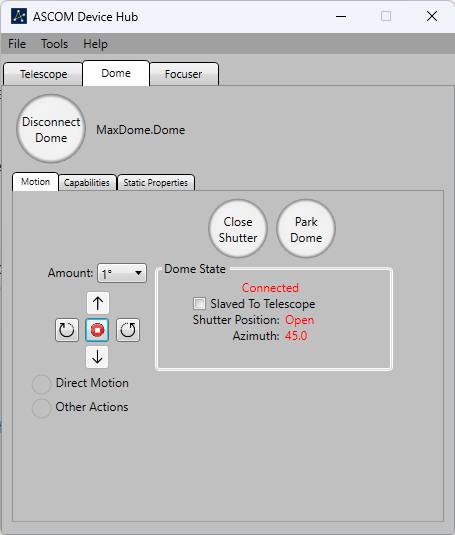
Please see Dome Setup and Slaving Setup if you have not already set up the dome and telescope.
Make sure that the Dome and Telescope have been properly selected. Note that a Telescope Simulator and Dome Simulator are available if you wish to experiment with the software without the hardware being present.
Click the Connect Dome button. The dome and telescope should now be connected. If you get an error message, check the connections.
Note: if the shutter was not fully closed or fully open when the MaxDome II system was powered up, the shutter may indicate an error status. This simply indicates that the shutter position is unknown. To fix that, simply close the dome.
Click the Open Shutter button. The dome should start opening within a few seconds. If the dome was set up with Park Dome Before Operating Shutter, the dome will first move to the Park position, and then start opening. As a result, the status may not report Opening until the dome is parked. The shutters will open in sequence, one after the other. Once both are fully open, the status will change to Shutter is Open within a few seconds.
If the dome has not been homed, it will not know where it is. To fix this, click the Direct Motion button, then Go To Home. Once homed, the dome will remember its position until the MaxDome II system is powered down.
MaxDome II is designed to maintain knowledge of the dome position, even if the dome is rotated manually using the manual controls. So you do not need to re-home after moving the dome with the paddle.
To send the dome to a specific azimuth, click the Direct Motion button, enter the desired Azimuth, then click Go To. Enter the desired azimuth and click OK.
Turn on the Slave to Telescope check box. The dome will now turn so that the slit is in front of the telescope aperture. If the dome turns to the wrong position, please see Slaving Setup. Some extra suggestions are listed under Troubleshooting.
Applications such as MaxIm DL Pro can connect directly to MaxDome II, without using Device Hub. Some applications may require a plug-in to be installed.
In Dome Hub, you can configure how often the dome position is updated under the Setup Dome dialog. There is a similar command in MaxIm DL Pro and other software. Generally this only needs to be done every 10 seconds or so. Whenever an update occurs, the software calculates what dome azimuth is required for the slit to be in front of the telescope, and sends that information to the MaxDome II driver. The driver then tells the dome to move if required.
The shutter can be closed at any time by clicking the Close Shutter button. The dome should start closing within a few seconds. If so configured, it may Park first before closing.
We strongly recommend that, regardless of the limit switch interlocks, a visual inspection be made to ensure complete dome closure. This will ensure that the dome is secure against weather hazards. For remote applications a webcam can be used for this purpose. When there is any possibility of damage, it is unwise to rely on a single system, no matter how reliable! We've actually seen a shutter completely fall off the observatory while it was closing - the hinges had corroded.
After ensuring that your telescope and dome are parked, you may wish to shut down the software. MaxDome II will keep running as long as it has power, so when you connect again it will be ready to go.
It is strongly recommended that you mount easily-accessible master power kill switches in the observatory, for both the Rotation Controller and Shutter Controller. This will allow you to kill the motors if an unsafe condition occurs. When working inside the dome, be aware that the shutter or dome may move at any time, in response to a (possibly remotely triggered) command from the computer. The dome also rotates periodically during sidereal tracking. Keep clear of moving parts at all times.
The MaxDome II boards include 10A fuses. This is to protect against overcurrents that might be caused by short circuits or possibly stalled motors. We recommend using an additional inline fuse at the battery or power supply, since shorts can happen in the wiring.
The shutters are sequenced in a particular order, assuming that the upper shutter overlaps on top of the bottom shutter. If for some reason the shutters appear not to be sequencing properly, shutter motion will be stopped. Reverse the motion to clear the error.
MaxDome II has a safety feature for detecting loss of communications with the PC. The Rotation Controller will "time-out" if it has not received a message from the PC for ten minutes. This could indicate simply that the user closed down the software without closing the dome, or it might indicate computer failure or power outage. This safety feature is part of the reason we recommend using a trickle charged lead acid Gell Cell as the power source for the controller.
In the event of a failure in the communications link between the Rotation Controller and the Shutter Controller, the Shutter Controller can also be configured for a ten minute time-out. Do not turn this feature on if there is a risk that the shutter mechanism could collide with the telescope during the close cycle.
The dome can be set up to automatically park whenever a shutter open or close operation is requested. The dome will lock out rotation commands, rotate to the park position, and then operate the shutter. This feature is also useful for the MaxDome Charging System.
Warning: all shutter safety features are disabled when the shutter is operated using the manual open/close switch. The shutter will move immediately, without parking; it is assumed you are present and watching for any mechanical interferences. The time-out closure feature will also be disabled, so that you can open the shutter for more than ten minutes without the PC link being present. Otherwise the dome would keep closing during manual operation.
If the rotation sensor does not see any dome rotation after actuating the motor for five seconds, the dome will be automatically stopped. To clear a rotation error, hit the Stop button, then issue a new rotation command. Note that an optical sensor failure will not prevent manual operation; the motor will continue turning under manual control even if the sensor does not see motion. This allows you to operate the dome manually if the rotation sensor fails.
MaxDome II expects the dome to stop rotating fairly quickly when a stop command is issued. Some domes may have significant inertia, and additional encoder tics may occur after MaxDome II commands the motor to stop. The Rotation Controller will watch for additional tics for several seconds. If the dome continues rotating for more than two seconds, it may cause problems with the pointing accuracy. If inertia is a problem, then the best solution is to slow down the dome rotation speed.
Note that the dome may not show "At Park" if it coasts too far past the park position. This can be a problem if you are using the MaxDome Charging System, so we recommend you resolve the problem mechanically if this is an issue.
"At Home" will appear when the dome stops after a Home command, even if the dome is slightly out of position. The next command will clear the "At Home" indication. Also note that "At Home" and "At Park" status is only displayed after a command to Home or Park; these indications will not appear if the dome just happens to stop at those positions.