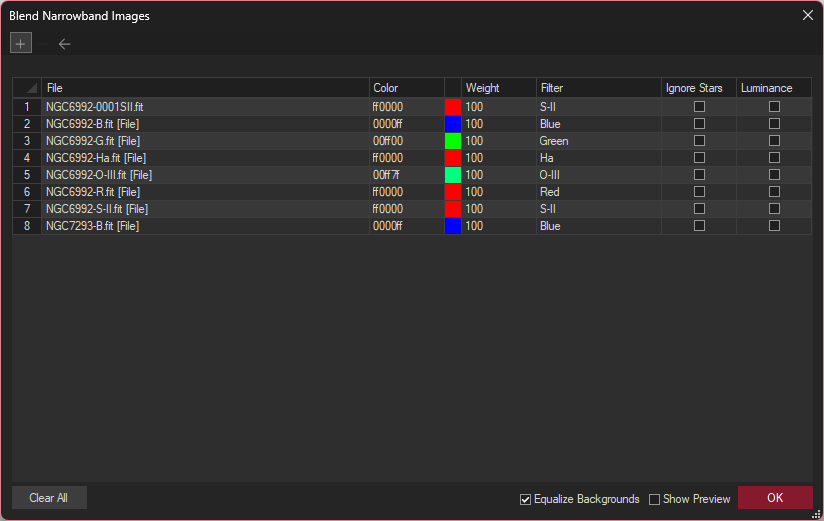
This tool is useful for merging narrowband image planes into color images. You can set up narrowband planes with realistic colors, or you can tweak their color to emphasize the color differences.
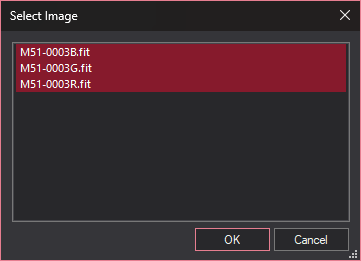
To create a narrowband image, first open all the individual color planes you wish to use. Click the + button to add one or more image planes. You will see an option to add an already-opened Image or a File on disk. You can multi-select images or files to add simultaneously using Shift-click and/or CTRL-click. To delete an image plane, select it on the list then click the - button.
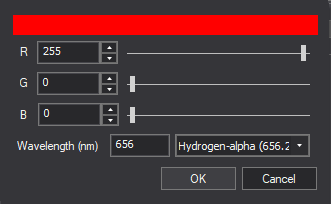
To adjust the color click on the Color field of an image, and a down-arrow will appear. Click on the down-arrow to display the adjustment dialog. You can either directly adjust the RGB value, or you can enter a Wavelength (nm), which will be automatically mapped to a specific color setting. A drop-list provides a set of predefined commonly-used filter bands. Click OK when done.
You can modify image properties by selecting the appropriate field in the list. Click on the Weight field for a line, then on the down-arrow, to adjust the scaling for individual planes. This allows you to adjust the overall color balance.

Ignore Stars will prevent the selected color plane from being blended into star images. This allows you to blend the background nebulosity without impacting the star colors.
Luminance indicates that the selected channel should be blended as a luminance channel, which will scale the overall brightness of all other channels.
Turning on Equalize Background will equalize the background level to make it a neutral black. Show Preview will preview the result on-screen. OK will create the final image.